Setting the Guided Reordering Preference
This topic is intended for Independent pharmacies only and is not applicable to Rexall pharmacies.
A pharmacy-level Guided Reordering preference controls the availability of the Guided Reordering option at the product level. Users with Guided ReOrder permissions in the Security Administration Facility window will be able to set this preference. For more information, see Setting User Access to Guided Reordering.
The Guided Reordering feature requires activation by PTS for the preference to be enabled.
Turning the Guided Reordering Pharmacy Preference ON
To use Guided Reordering, the pharmacy-level preference must first be turned ON. This enables the Guided Reordering option at drug level but does NOT automatically set the reordering method for any products. If you want to use Guided Reordering for a specific product, you would need to enable it from the Drug Folder as described in Setting Guided Reordering for a Product.
To enable Guided Reordering at the pharmacy level:
-
Select More (...) > Pharmacy.
-
Select the Inventory button at the bottom.
-
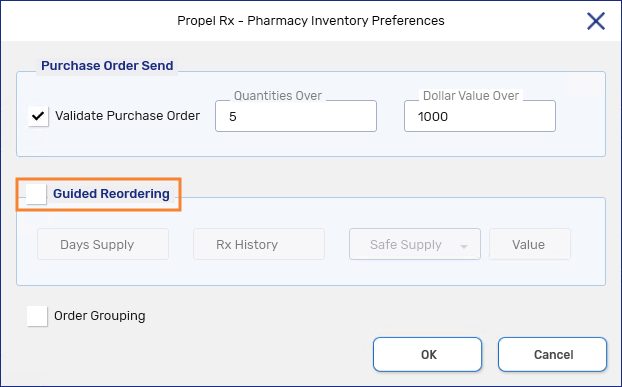
The Pharmacy Inventory Preferences window opens. Select the Guided Reordering checkbox. This enables the fields within the group box.
-
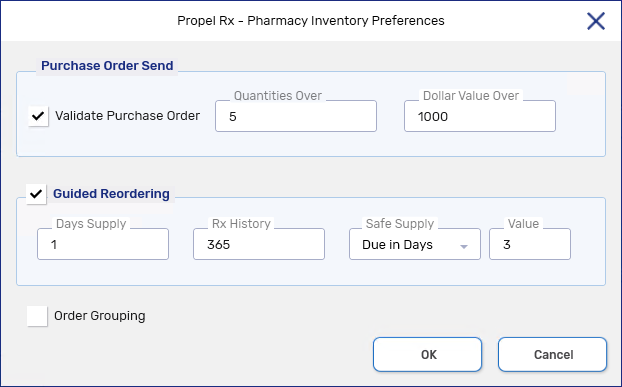
In the Days Supply field, enter the minimum days worth of stock you want to keep on your shelves (between 1 and 365). By default, this field is set to 1.
-
In the Rx History field, enter the number of days worth of dispensing history that should be considered in the Guided Reorder Point (Guided ROP) calculation (between 30 and 365). By default, this field is set to 365. Only prescriptions with a Complete or Amend status are considered.
At least 30 days worth of dispensing history is required to calculate the Guided Reorder Point.
-
In the Safe Supply field, select the amount of buffer you want to add to the calculation.
-
None - no buffer is added.
-
Percent - a percent of the average daily number of units that your pharmacy dispenses for a product will be included in the calculation.
-
Due in Days - the units required for Auto Refill and batched prescriptions due in the specified number of days will be included in the calculation.
-
-
Select OK.
-
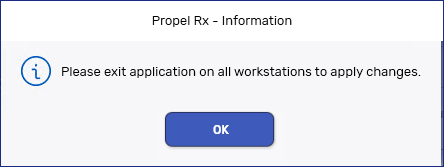
A prompt will appear advising workstations need to be restarted. Select OK.
-
Select Save.
-
Restart Propel Rx on all computers for the changes to take effect.
What's Next?
When the Guided Reordering preference is enabled, the Guided ReOrder option becomes available in the Drug Folder Inventory tab for all products. From the Drug Folder, you can update the ordering method for each product. See Setting Guided Reordering for a Product for more information.
Turning the Guided Reordering Pharmacy Preference OFF
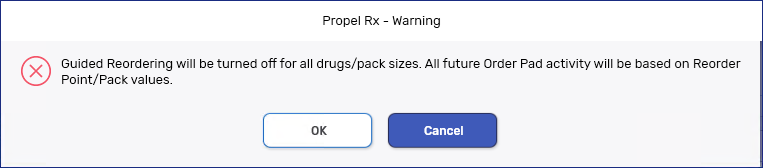
When Guided Reordering is turned OFF, all products that had an order method of Guided Reordering will be switched to Re-Order Points and Packs that were previously set before Guided Reordering was enabled.
To disable Guided Reordering at the pharmacy level:
-
Select More (...) > Pharmacy.
-
Select the Inventory button at the bottom.
-
The Pharmacy Inventory Preferences window opens. Deselect the Guided Reordering checkbox.
-
A prompt will appear to confirm the action. Select OK.
-
A prompt will appear advising workstations need to be restarted. Select OK.
-
Select Save.
-
Restart Propel Rx on all computers for the changes to take effect.